Siri setup
Set up Siri
Takes two minutes
Siri can save where you were and read it back to you.
You need: Siri turned on, and Interruptible opened at least once.
Set up · once
Make Siri answer out loud
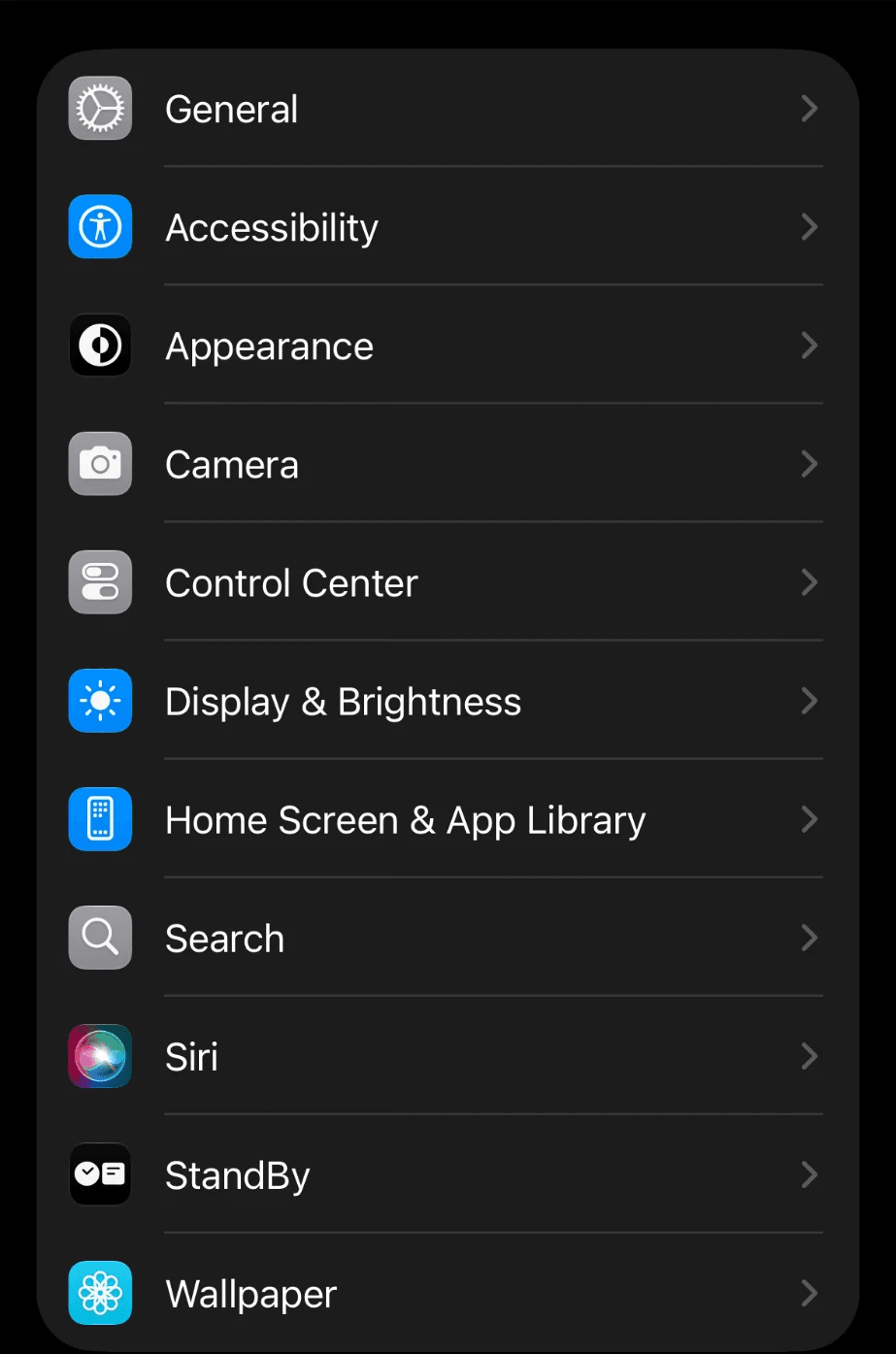
- Open Settings, then tap Siri.
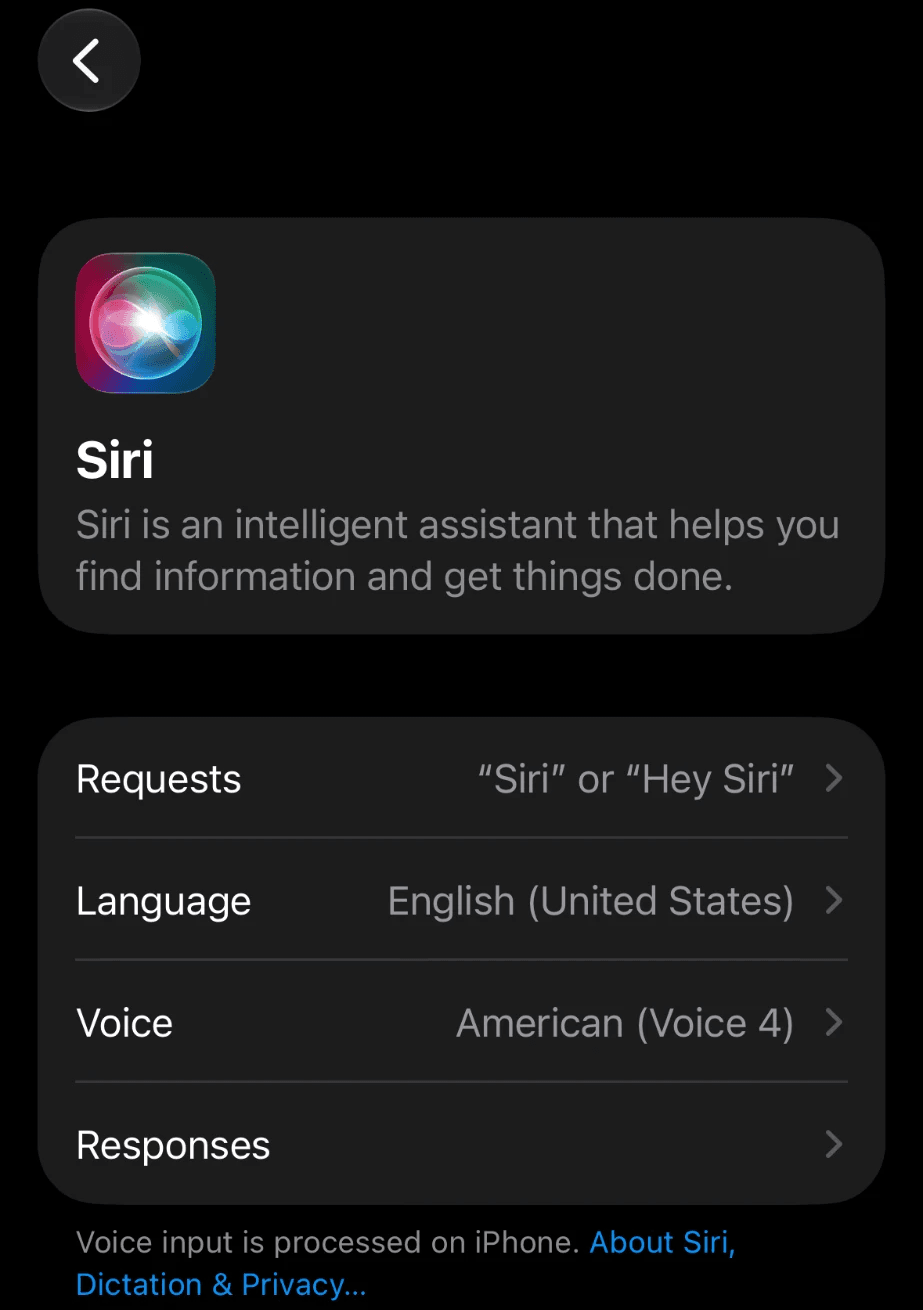
- Tap Responses.
- Tap Prefer Spoken Responses.
On iOS 26: Settings › Siri › Siri Responses › Prefer Spoken. Some iPhones call it Apple Intelligence & Siri.
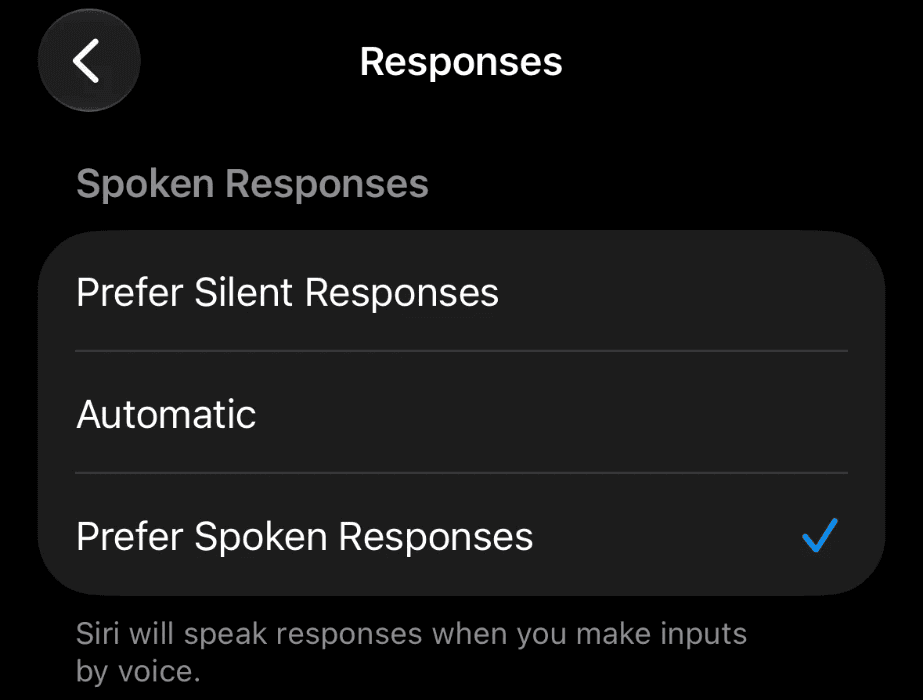
That’s it. Siri now says its answers instead of only showing them.
Every day
Two things to say
Nothing to set up. These work as soon as Interruptible has been opened once.

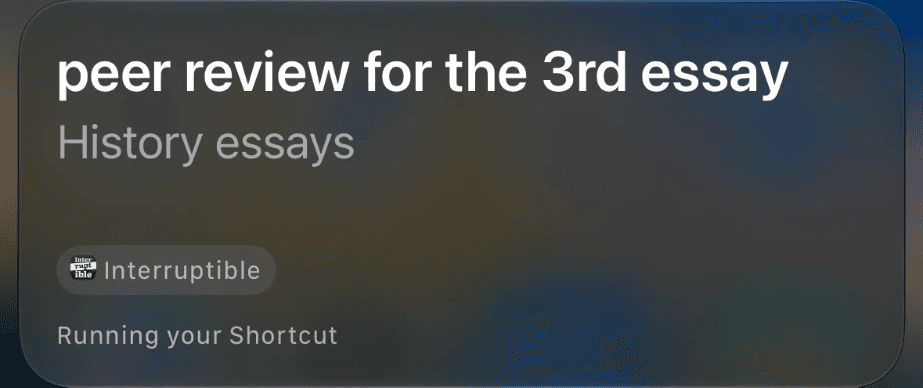
Say “in Interruptible” every time, or Siri asks a different app.
Optional
Use your own words
Make a shortcut, and Siri answers to its name. No “in Interruptible” needed.
- Open Shortcuts and tap +.
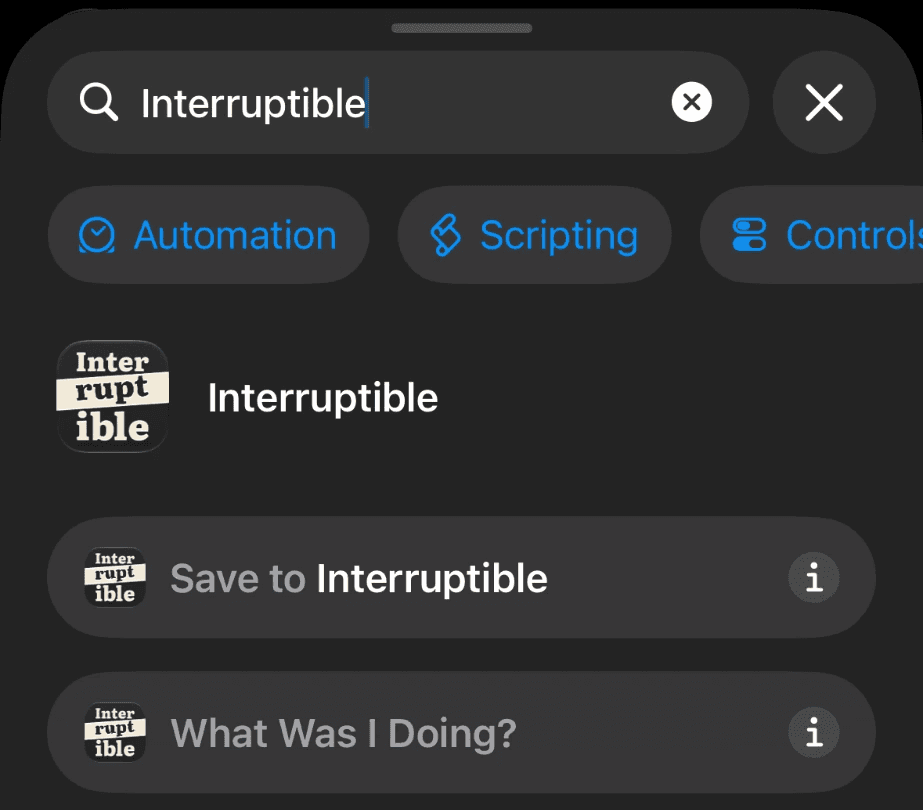
- In Search at the bottom, type Interruptible. Then tap What Was I Doing?
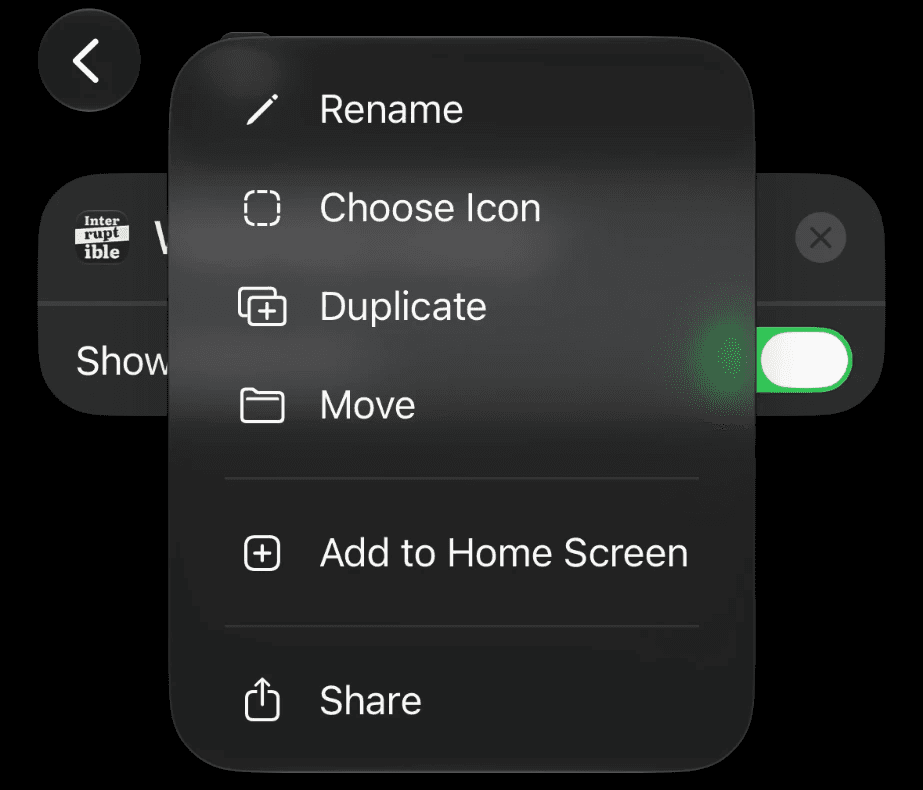
- Tap the name at the top, then Rename.
- Type what you’ll say, like “What’s Next?”, then tap ‹ to save.
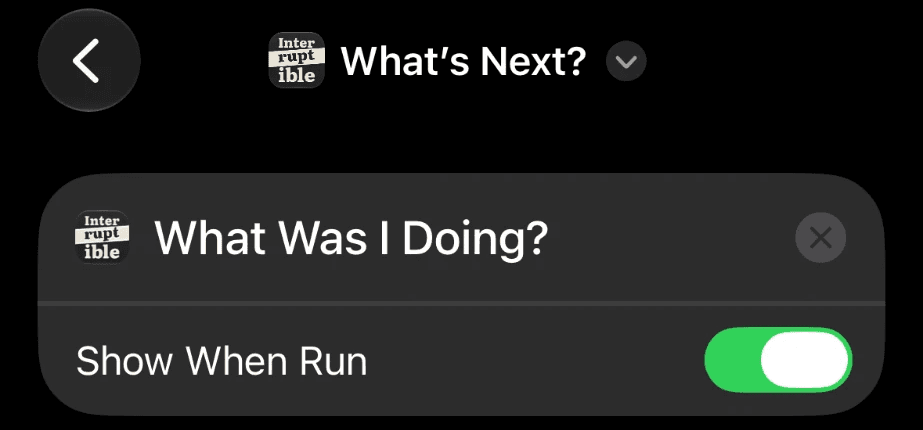
Now say “Siri, what’s next?”, or whatever you named it.
Run it with one press
iPhone with an Action Button (iPhone 15 Pro and Pro Max, and every iPhone 16 and 17)
- Open Settings and tap Action Button.
- Swipe to Shortcut, tap Choose a Shortcut and pick yours.
Press and hold the button to hear where you left off.
Any other iPhone: Back Tap (no Action Button in Settings means your iPhone doesn’t have one)
- Open Settings › Accessibility › Touch › Back Tap.
- Tap Double Tap, then pick your shortcut from the list.
Tap the back of your iPhone twice to hear where you left off.
If Siri doesn’t answer
- Siri is on.
- Your iPhone is unlocked.
- You said “in Interruptible”.
- Siri stopped recognising the phrase? Open Interruptible once.
- Siri shows the words but stays quiet? Do Make Siri answer out loud.
Still stuck? Email support@clickingnook.com and tell us what Siri said.